
The Contractors screen has one search box, and it filters as you type — there's no need to press anything.
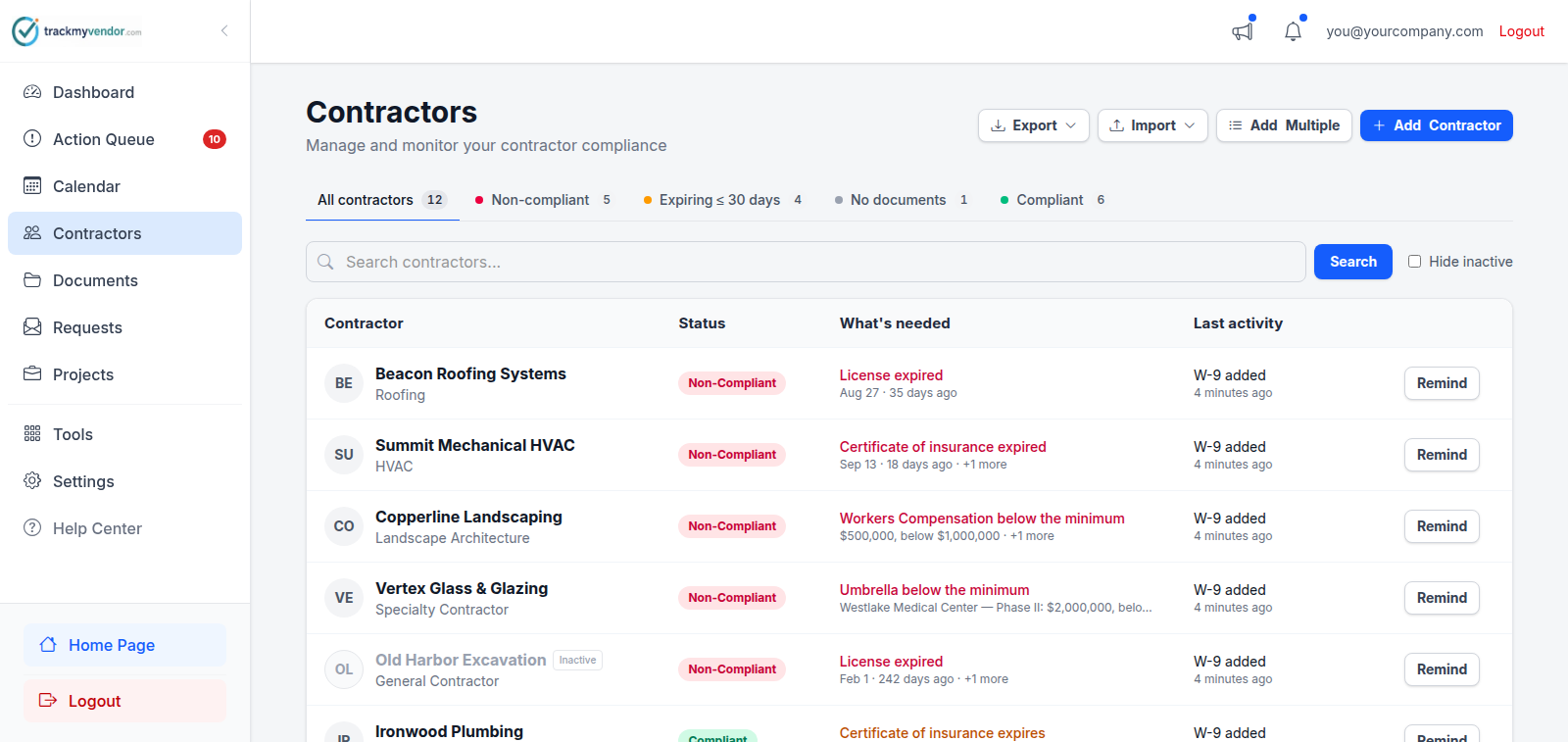
- 1 Click a count to filter the roster
- 2 Search by any part of the name
Prospects — subs you're still vetting — aren't on this list; they're on the Prospects screen. If your search matches one, a line above the results says so and links to them.
Finding one contractor
Type any part of the name into Search contractors… at the top of the list. Partial matches work, so "rodr" finds "Rodriguez Electric".
Contractors you have marked inactive show Inactive as their status and aren't counted under Non-compliant, Compliant, Expiring or No documents. They have an Inactive count of their own. Tick Hide inactive beside the search box to leave them out of the list completely.
Finding the ones that need work
For "who is Non-Compliant?", don't filter this list — open the Action Queue. It exists precisely for that question, and it groups by contractor and orders by urgency rather than making you scan a roster.
For "where is that certificate?", use the Documents screen, which searches across every contractor at once and filters by document type and status.
Getting the list out
The Export menu at the top of the Contractors screen downloads your whole roster as Excel or as a PDF report, whatever the list is currently filtered to. Useful for a status report to an owner, or a working list for a site meeting. Both need a Pro plan — see Export a compliance report.
Tip