
TrackMyVendor can't tell you whether a certificate is good enough until it knows what you require. Set this first — before you add contractors — and every certificate that arrives afterwards is checked against it automatically.
-
Open Settings
Click Settings at the bottom of the sidebar. You'll land on the Compliance tab.
-
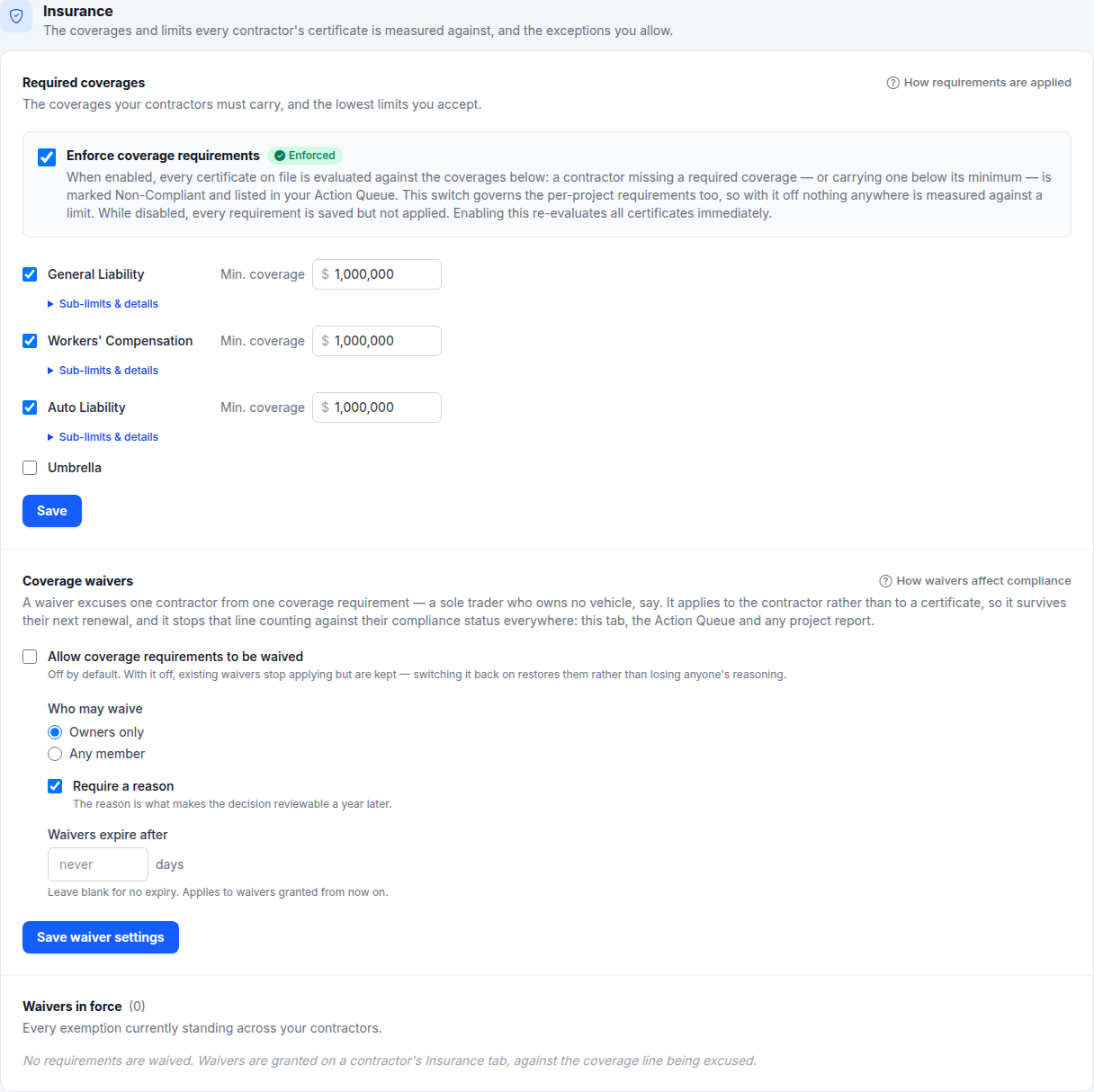
Tick the coverages you require
Under Required Insurance Coverages there are four:
- General Liability
- Workers' Compensation
- Auto Liability
- Umbrella
Tick only the ones you actually require. An unticked coverage is ignored entirely — a contractor is never marked short for missing it.
- 1 Tick to require the coverage
- 2 The lowest limit you'll accept
-
Set a minimum for each
Ticking a coverage reveals a Min. coverage field. Enter the lowest limit you'll accept —
1000000for a million. No commas needed. -
Save
Click Save. The new requirements apply immediately, including to certificates already on file.
Careful
Different requirements for different jobs
These settings are your organization-wide floor. If one job needs higher limits than the rest, set that on the job itself rather than raising the floor for everybody — see Set per-project insurance requirements.
Not sure what to require?
That's a question about your risk and your contracts rather than about this software, and we have longer guides on it. General contractor insurance requirements walks through the usual limits, and the state requirement guides cover what's typical where you work.
What happens next
With requirements set, add someone to check them against: Add your first contractor.