
Every deadline on the Calendar screen can be pushed into the calendar you already have open all day. It's a subscription, not an export: your calendar app re-fetches it on its own schedule, so a certificate you record here turns up in Outlook without anyone doing anything.
Subscribing
Open Calendar and click Subscribe.
- Apple Calendar or Outlook — click Add to Apple or Outlook and confirm. That's it.
- Google Calendar — copy the feed URL, then in Google go to Other calendars → From URL and paste it. Google doesn't accept the one-click version.
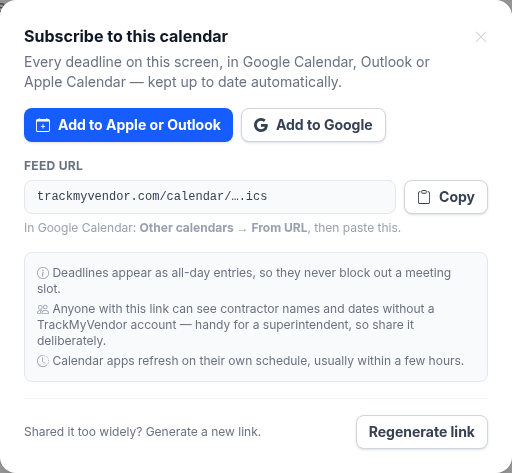
- 1 One click for Apple and Outlook
- 2 Paste this into Google
- 3 Revokes every shared copy
Deadlines arrive as all-day entries, so they never block out a meeting slot. Calendar apps refresh on their own schedule — usually within a few hours, and not on demand. If you've just added a contractor and want to see it immediately, the Calendar screen is the faster answer.
Who can see it
Careful
If it's been shared too widely
Generate a new link. Owners can do it from either Calendar → Subscribe or Settings → Advanced, and both do the same thing.
There's no way to cut off one subscriber. Regenerating revokes every copy at once — everyone currently subscribed stops receiving updates until you send them the new link, including you. That's the honest version of revoking access, rather than a list of who has it that would never be accurate.
Turning it off entirely
Regenerating and not sharing the new link is how you stop the feed. If your plan stops including calendar subscriptions, the link stops working on its own — an existing subscription doesn't outlive the plan that created it.
Note