
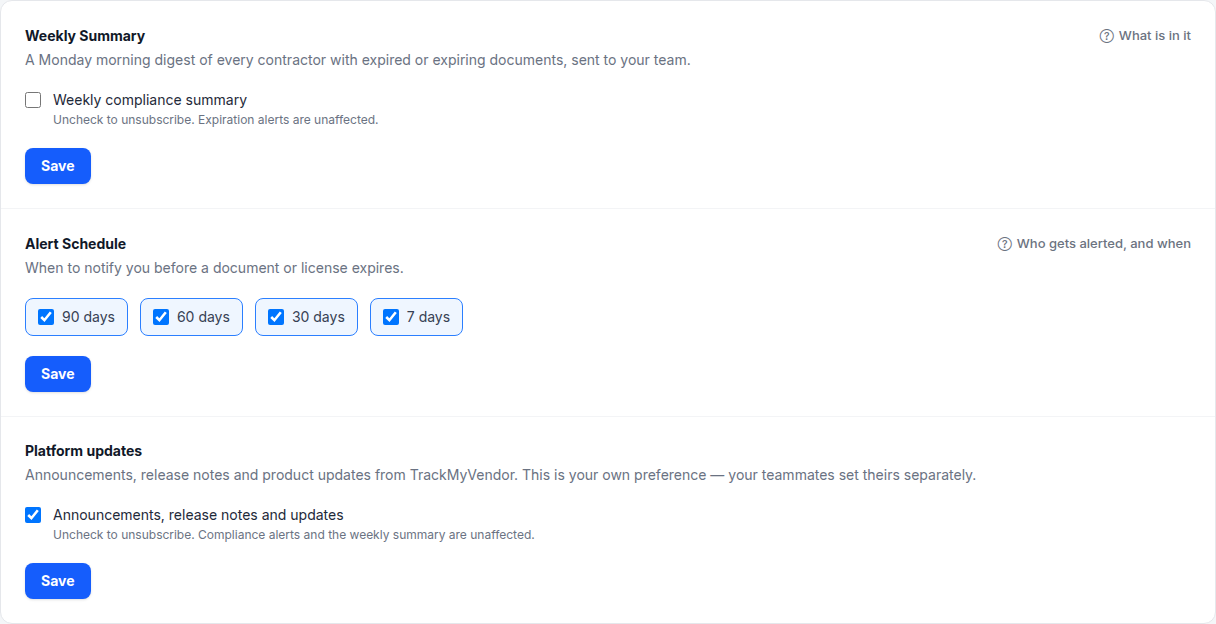
Three settings live on Settings → Notifications. The first two apply to your whole organization; the third is yours alone.
Weekly summary
One checkbox: Weekly compliance summary. Unticking it stops the Monday digest for every member of your organization. Per-deadline alerts carry on regardless.
Alert schedule
Four checkboxes — 90 days, 60 days, 30 days, 7 days. Tick the windows you want to be told at.
Fewer is often better. All four on a 200-contractor roster is a lot of email, and email people stop opening is worse than email they don't get. A common setting is 60, 30 and 7 — far enough out to act, close enough to matter.
- 1 The Monday digest
- 2 Which deadlines to warn at
- 3 Yours alone
Platform updates
One checkbox: Announcements, release notes and updates. This one is personal — unticking it stops us emailing you about what's changed in the product, and does nothing to your teammates. Compliance alerts and the weekly summary are unaffected either way.
What we'd send is the same thing published at What's New, so unsubscribing costs you nothing but the reminder.
Who receives what
| To | Plan | |
|---|---|---|
| Weekly summary | Every member of your organization | All plans |
| Expiration alert | Every member of your organization | Starter and above |
| Expiration reminder | The contractor | Starter and above |
| Release notes | Only the people who opted in | All plans |
Note
Adding a teammate adds a recipient: see Invite a teammate.